> For the complete documentation index, see [llms.txt](https://alphadocs.dualite.dev/llms.txt). Markdown versions of documentation pages are available by appending `.md` to page URLs; this page is available as [Markdown](https://alphadocs.dualite.dev/build-ai-apps-with-dualite/gemini-use-google-ai.md).
# Gemini: Use Google AI
Connect Gemini to your project to build with Google’s powerful multimodal AI models.
Google created Gemini, a cutting-edge multimodal AI model for thinking, interpreting, and producing across language, code, images, and other mediums. Integrating Gemini into Dualite allows you to develop intelligent, highly contextual apps that combine the power of Google's AI ecosystem with Dualite's no-code design and automation features.
This article will show you how to integrate Gemini into your Dualite projects to improve processes, including document summarisation, conversational assistants, generative design logic, and smart automation triggers.
{% hint style="info" %}
**Your API key are secure with Dualite.**
It is encrypted and never exposed, so you can connect without any worry.
{% endhint %}
### Why Gemini?
#### Gemini is renowned for:
* Multimodal skills include the ability to understand and interpret inputs such as text, graphics, and even code at the same time.
* Combines easily with other Google products and APIs.
* Excels at logical inference, lengthy context comprehension, and task chaining.
* Gemini's characteristics make it a perfect model for Alpha users wishing to create complex, human-like, and context-aware interfaces for a variety of use cases.
### Integrating Gemini AI in Dualite
Before integrating Gemini, ensure that you have:
* Access to [Google AI Studio](https://aistudio.google.com).
* An activated Gemini API key.
#### Step 1: Get Access to Gemini via Google AI Studio
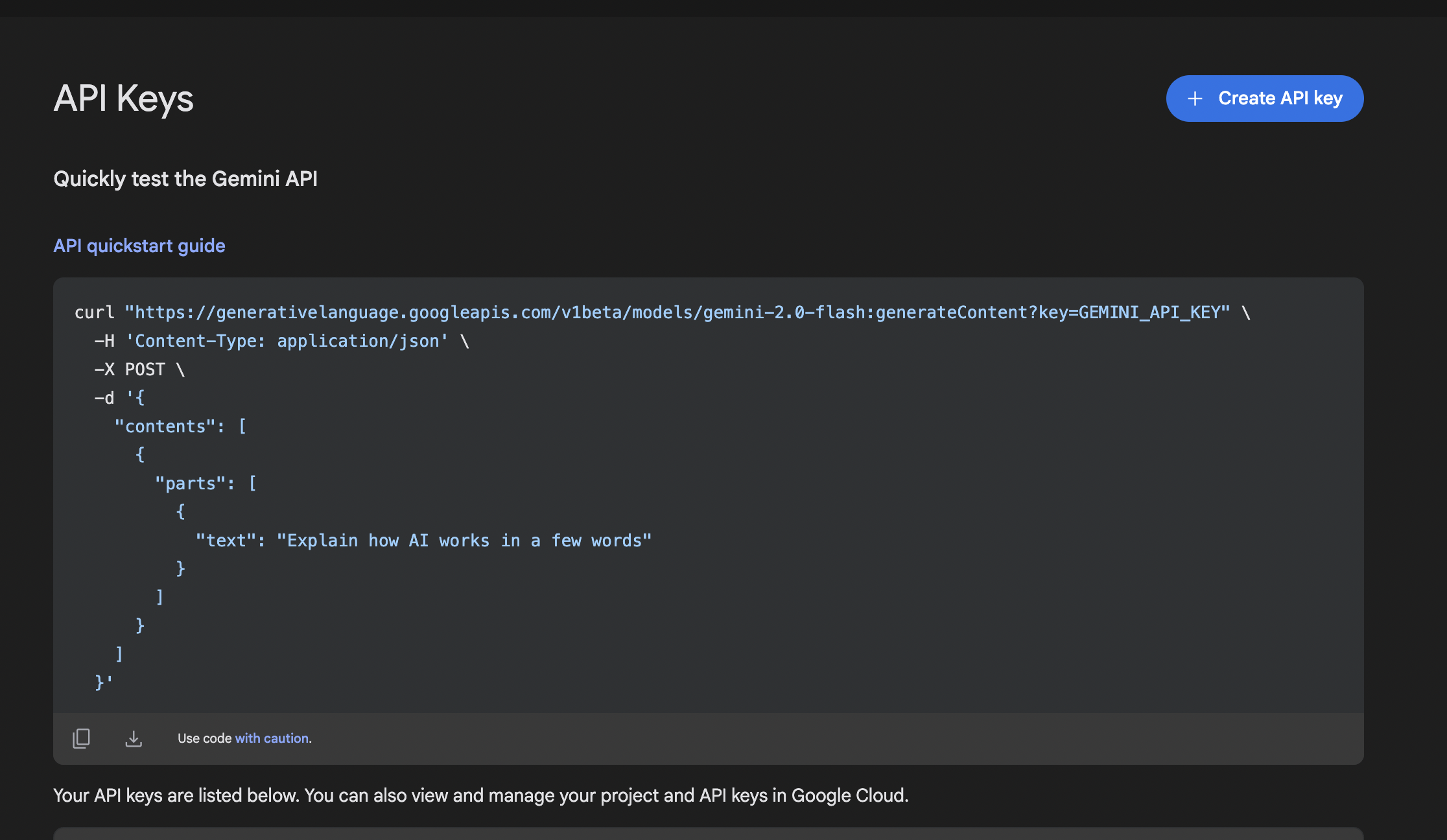
Visit [Google AI Studio](https://aistudio.google.com) and create an API key for the Gemini model you want to use. Gemini 1.5 Pro is typically recommended for advanced multimodal workflows.
#### Step 2: Tell Dualite about your Gemini key
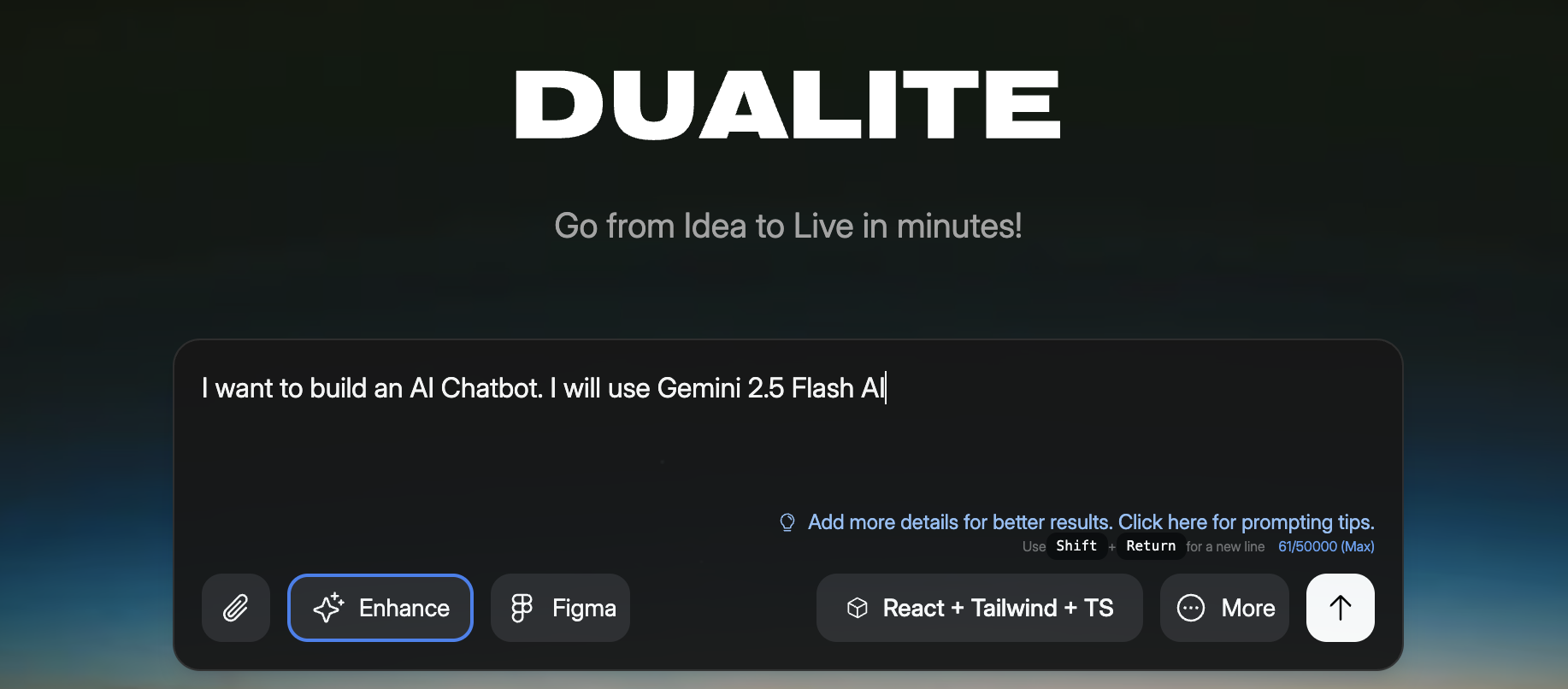
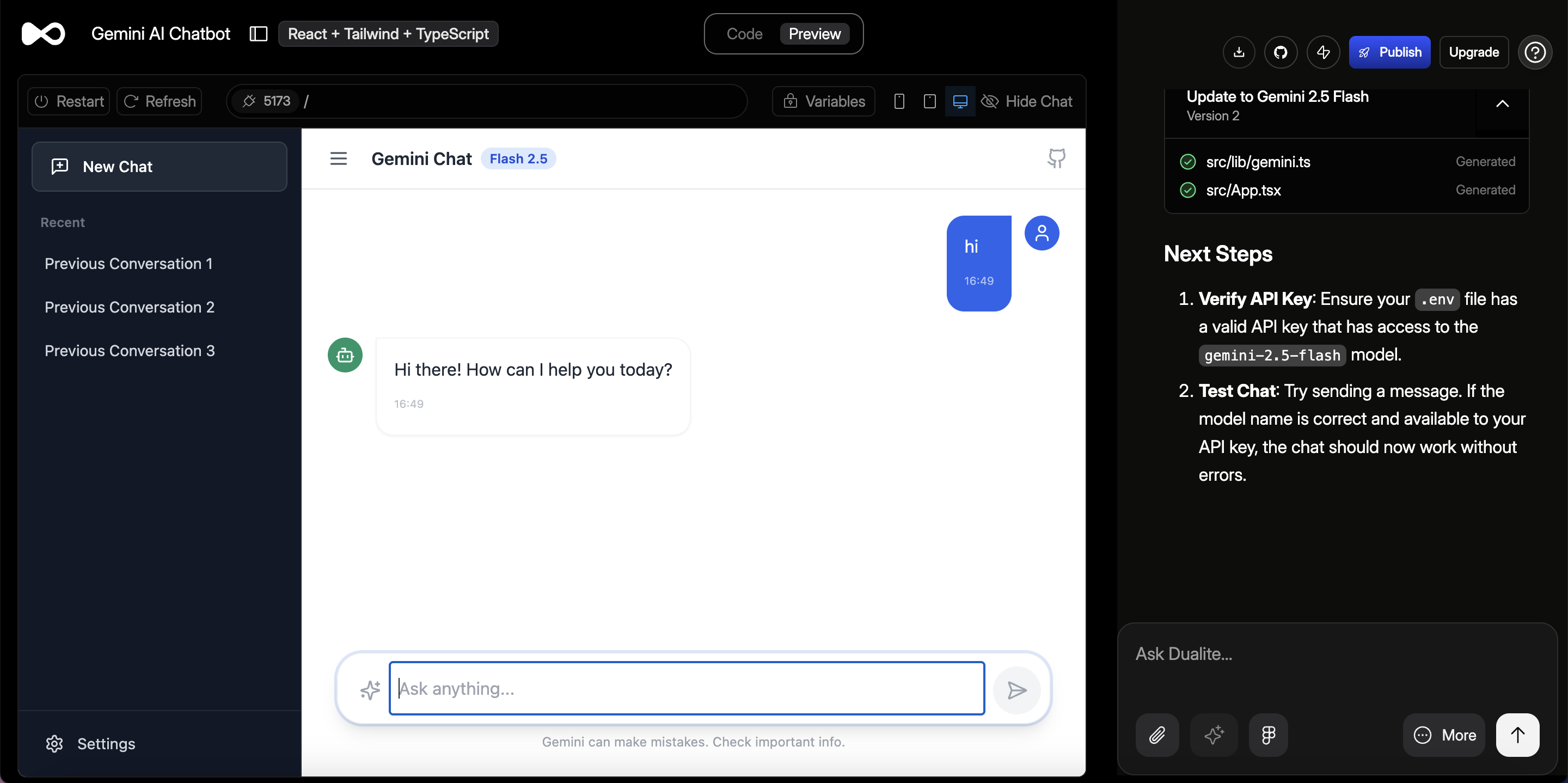
Prompt in about the AI project you want to build (e.g AI Chatbot) and make sure you write that you want to use **Gemini 2.5 Flash AI** for it.
#### Step 3: Add the relevant API key through Variables
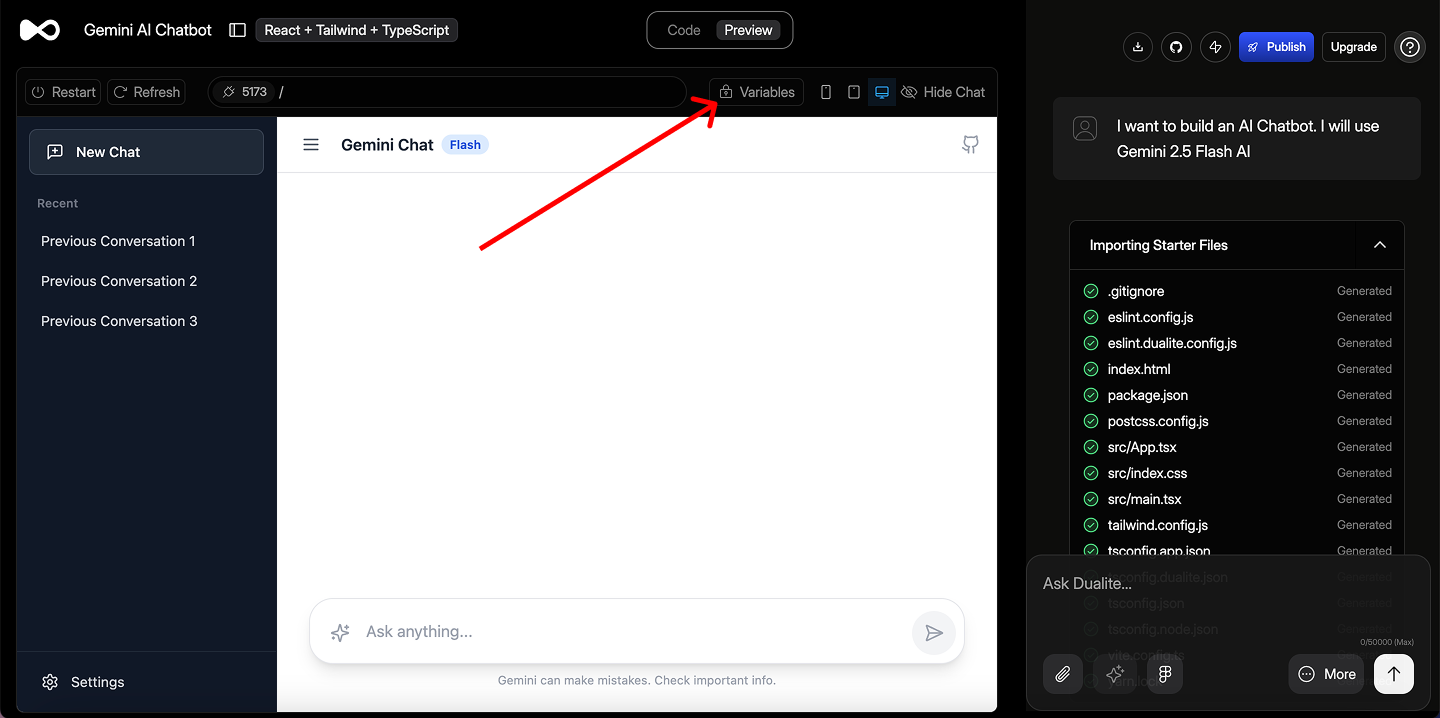
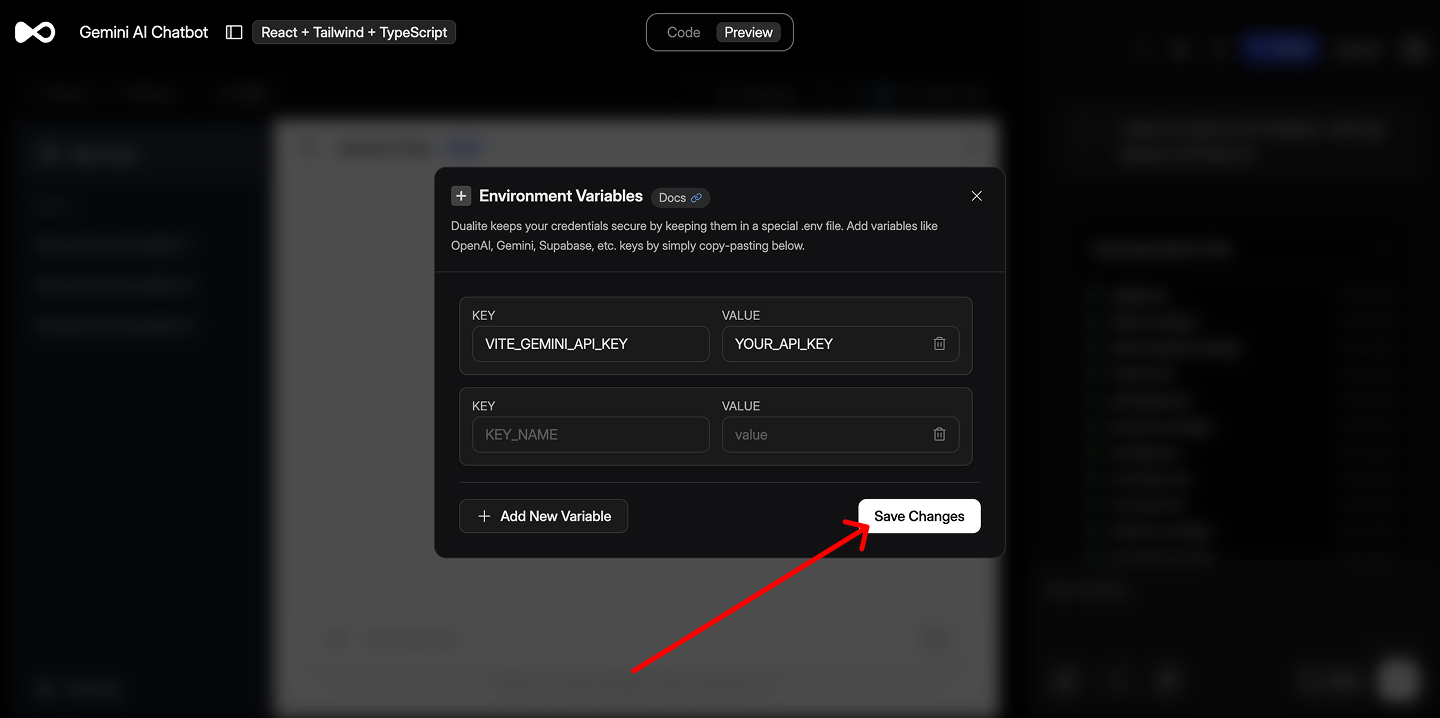
Open "Variables" and copy-paste your Gemini API key into the Variables pop-up and click on "Save Changes"
#### Step 4: All set and done!
Your AI Chatbot is now ready and integrated with Google's multi-modal AI, Gemini.
#### Potential Error
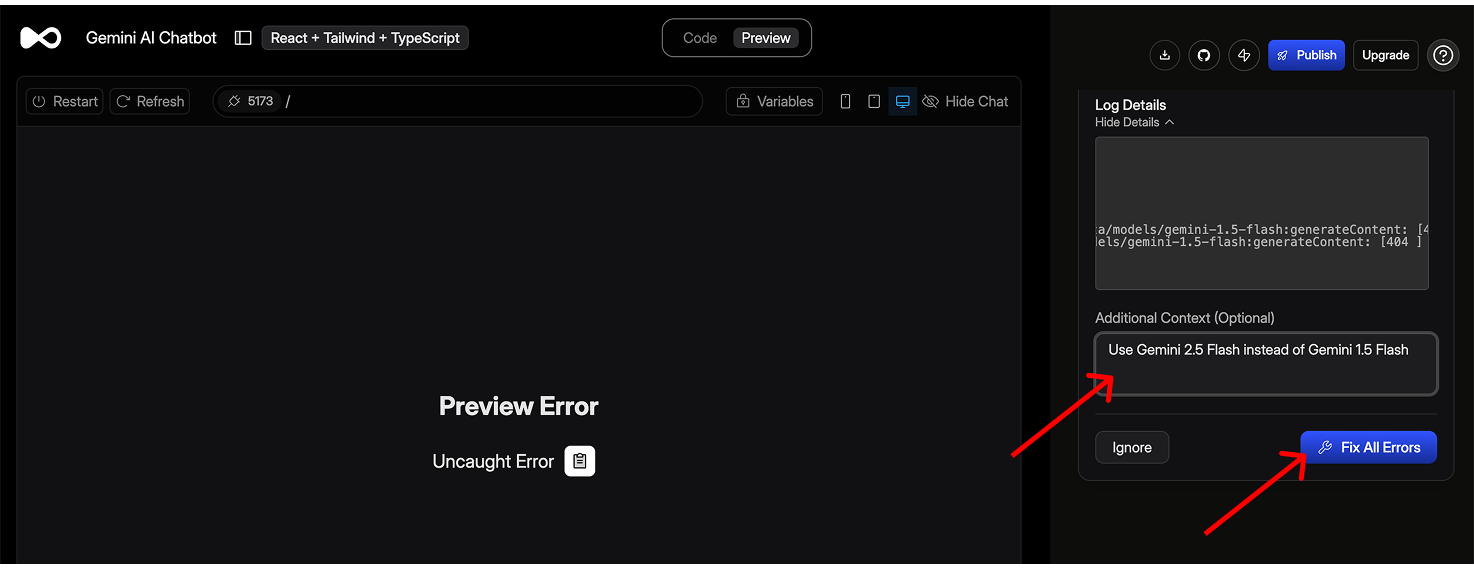
There can be times when Dualite has assumed "Gemini 1.5" instead of "Gemini 2.5 Flash" and something like the following screen may appear.
You just need to type in to iterate again and use Gemini 2.5 Flash and click on "Fix all Errors" to get it up and running!
### Conclusion
Integrating Gemini with Dualite unlocks a new level of AI-powered prototyping. Whether you're building smarter assistants, generating designs, or parsing large documents, Gemini offers a flexible and creative engine within your Alpha workflow.
### Frequently Asked Questions:
#### Q1. How to get Google Gemini API Key?
* Go to [Google AI Studio](https://aistudio.google.com) and sign in with your Google account.
* Create a project, enable billing if needed, then click “Create API Key.”
* Copy the key
#### Q2. Why am I getting an error even after adding the API key?
Even with the correct API key, a 404 error can occur if Dualite is using the wrong Gemini model. To fix this, make sure the model name (e.g., gemini-pro or gemini-1.5-pro) matches the one available in your Google AI Studio. If not, update it in Dualite prompt settings as described above.
#### Q3. What should I do if the model is overloaded or not responding?
This usually means your API key’s quota is exhausted. Simply create a new API key in [Google AI Studio](https://aistudio.google.com) to continue using the Gemini model without interruption.
#### Q4. AI is working, but the results aren’t what I expect. What should I do?
Use the chat to improve your prompt. To do this, clearly describe what the AI is currently generating, what you want instead, and give it guidance or examples to steer it in the right direction. Prompting is iterative!